Your order:
Clear cart
Promo code
Subtotal
$0.00
Discount
$0.00
Total
$0.00
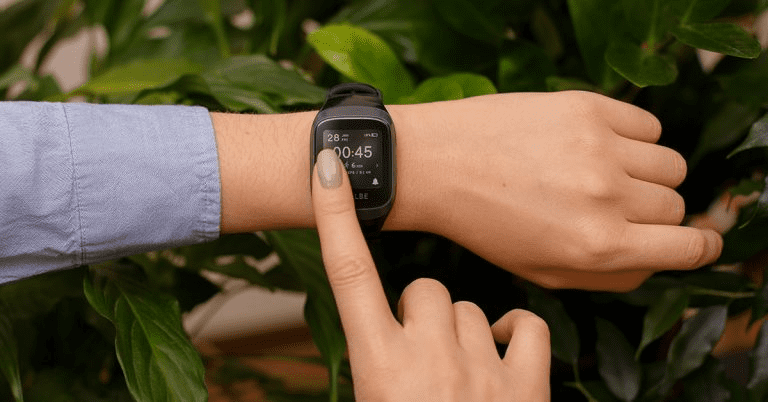
GoBe3 navigation is based on gestures you know. Just a few simple gestures and the full functionality of the HEALBE GoBe3 smart band is at yourå fingertips:
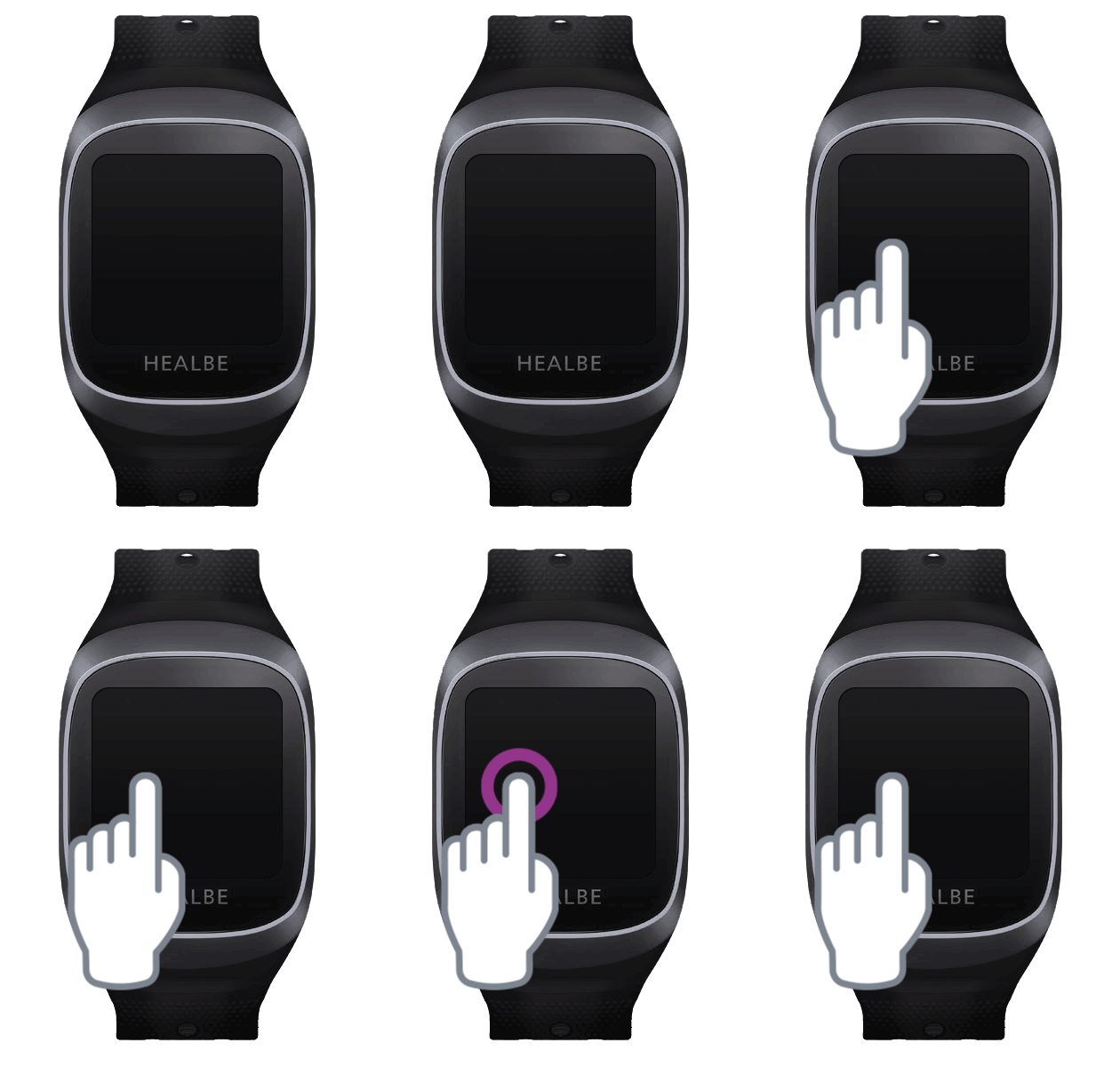
Left tap – tap the left side of the screen
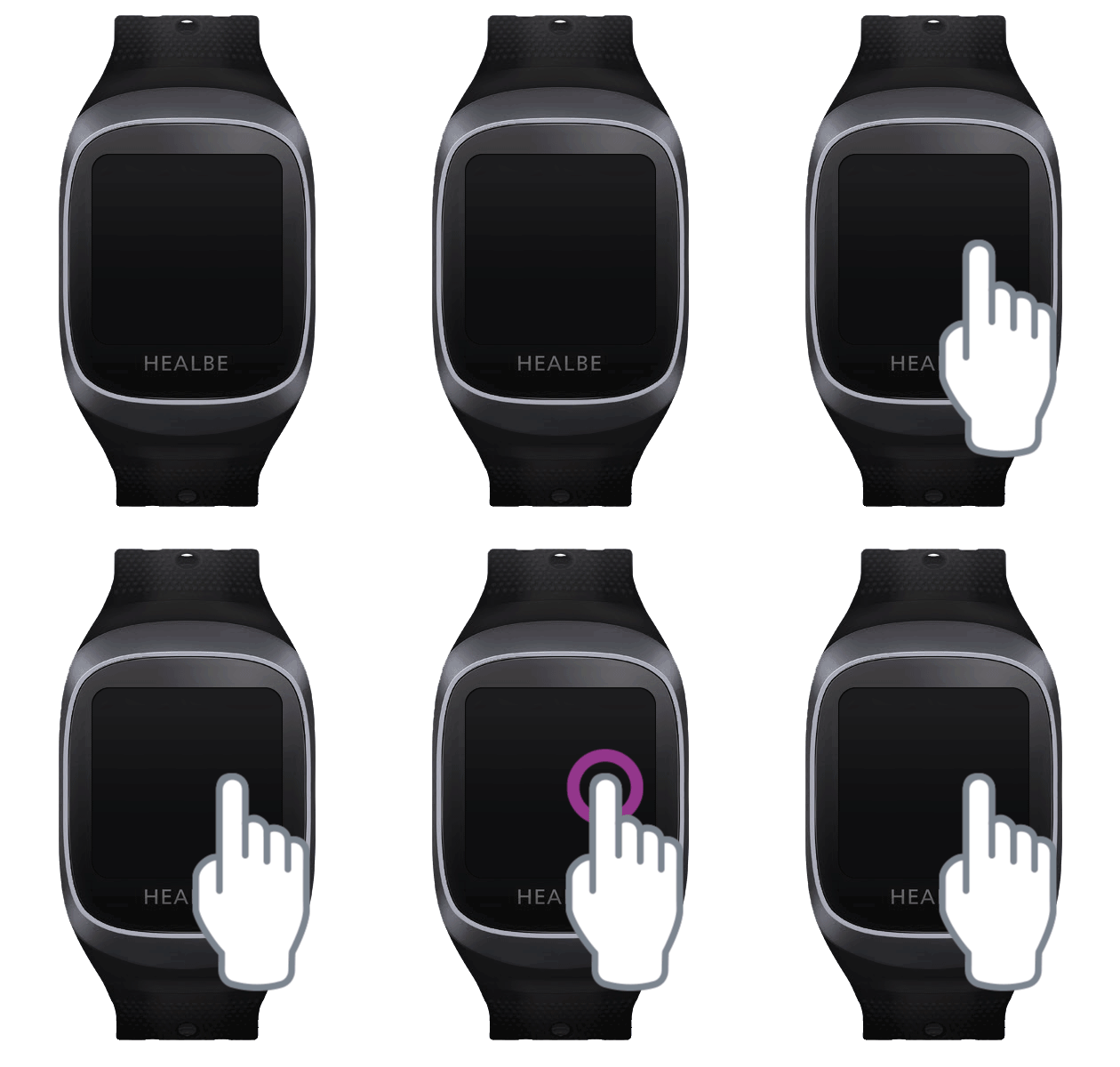
Right tap – tap the right side of the screen
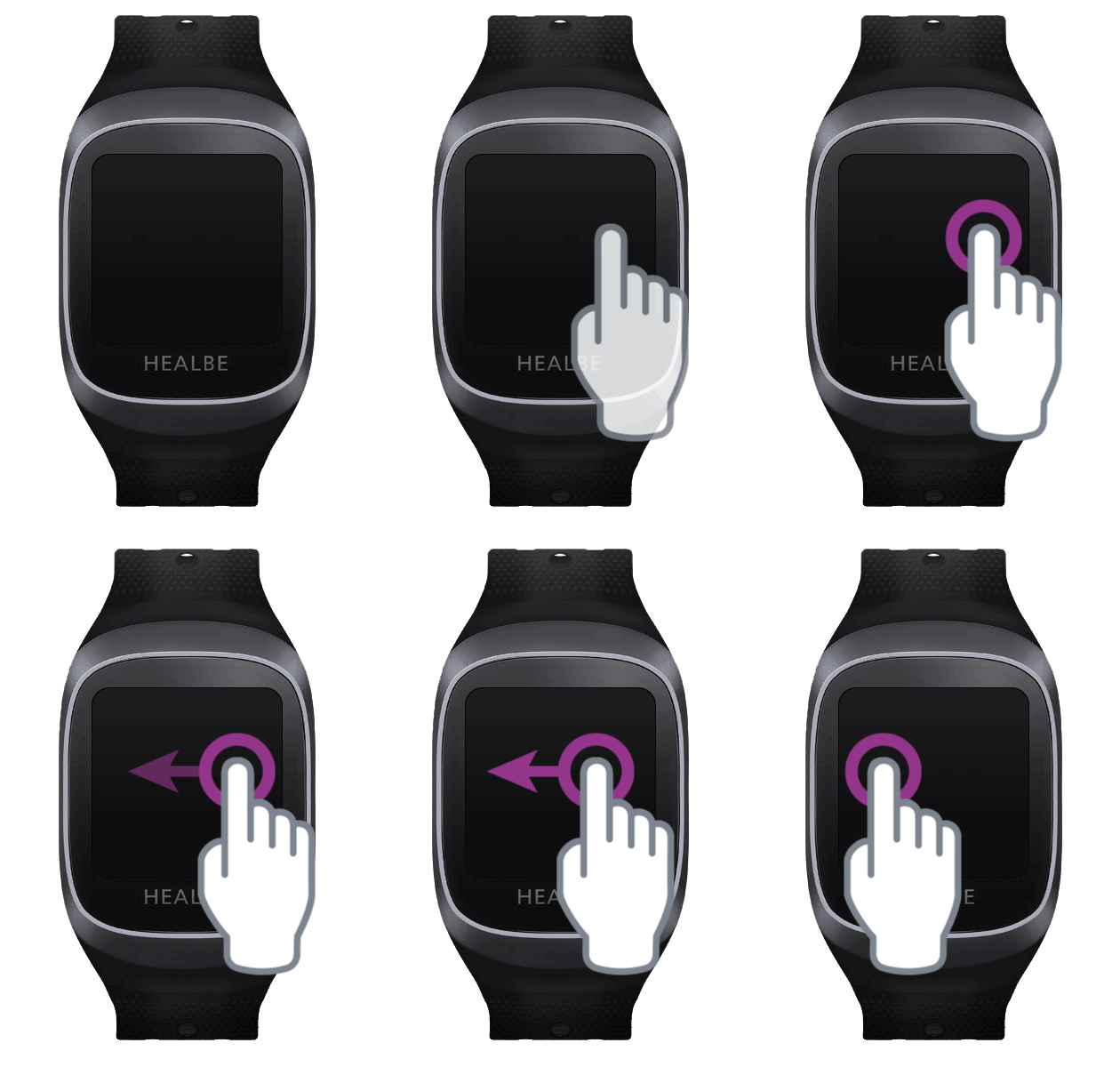
Left swipe – touch the right side of the screen and swipe to the left
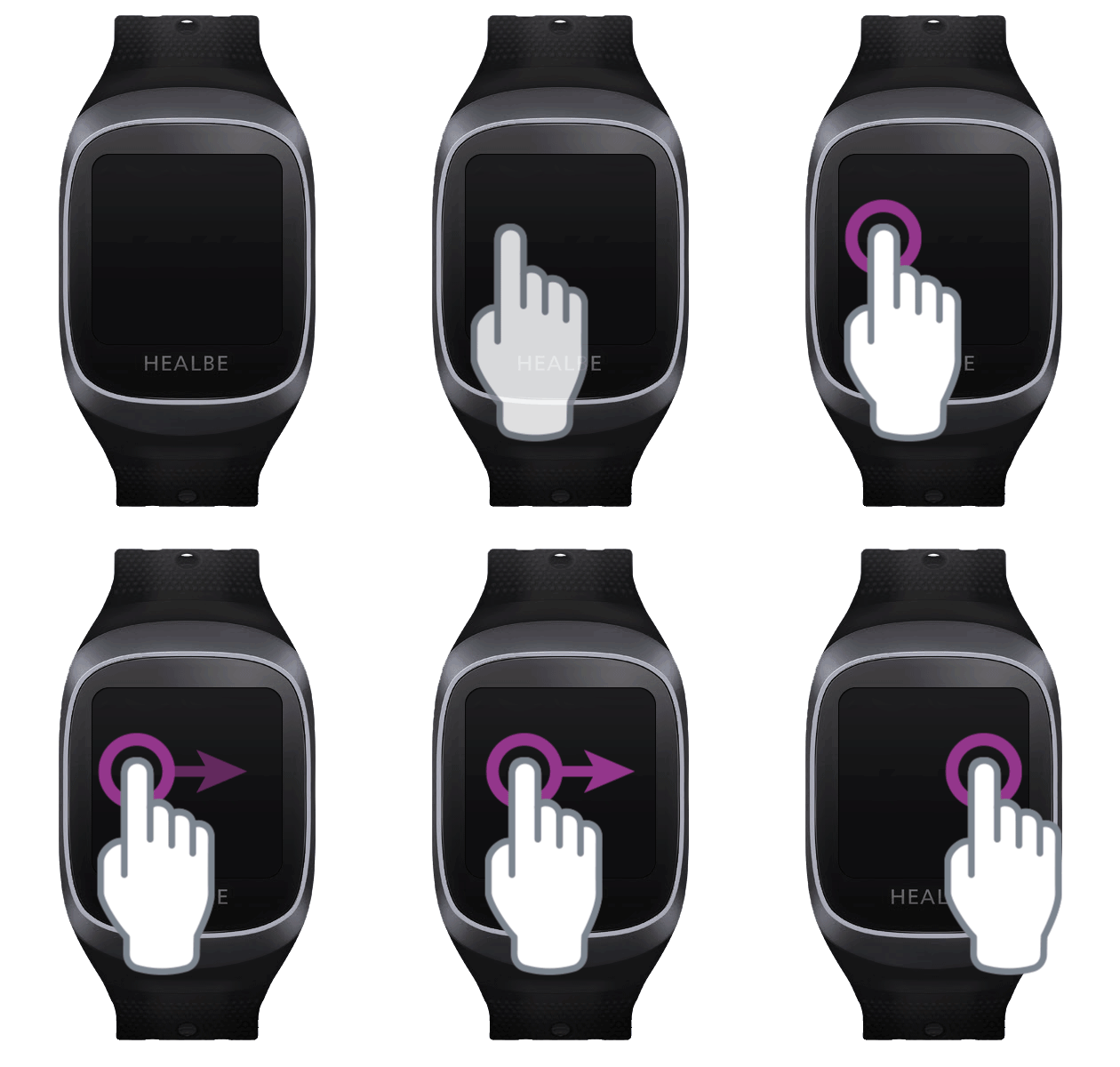
Right swipe – touch the left side of the screen and swipe to the right
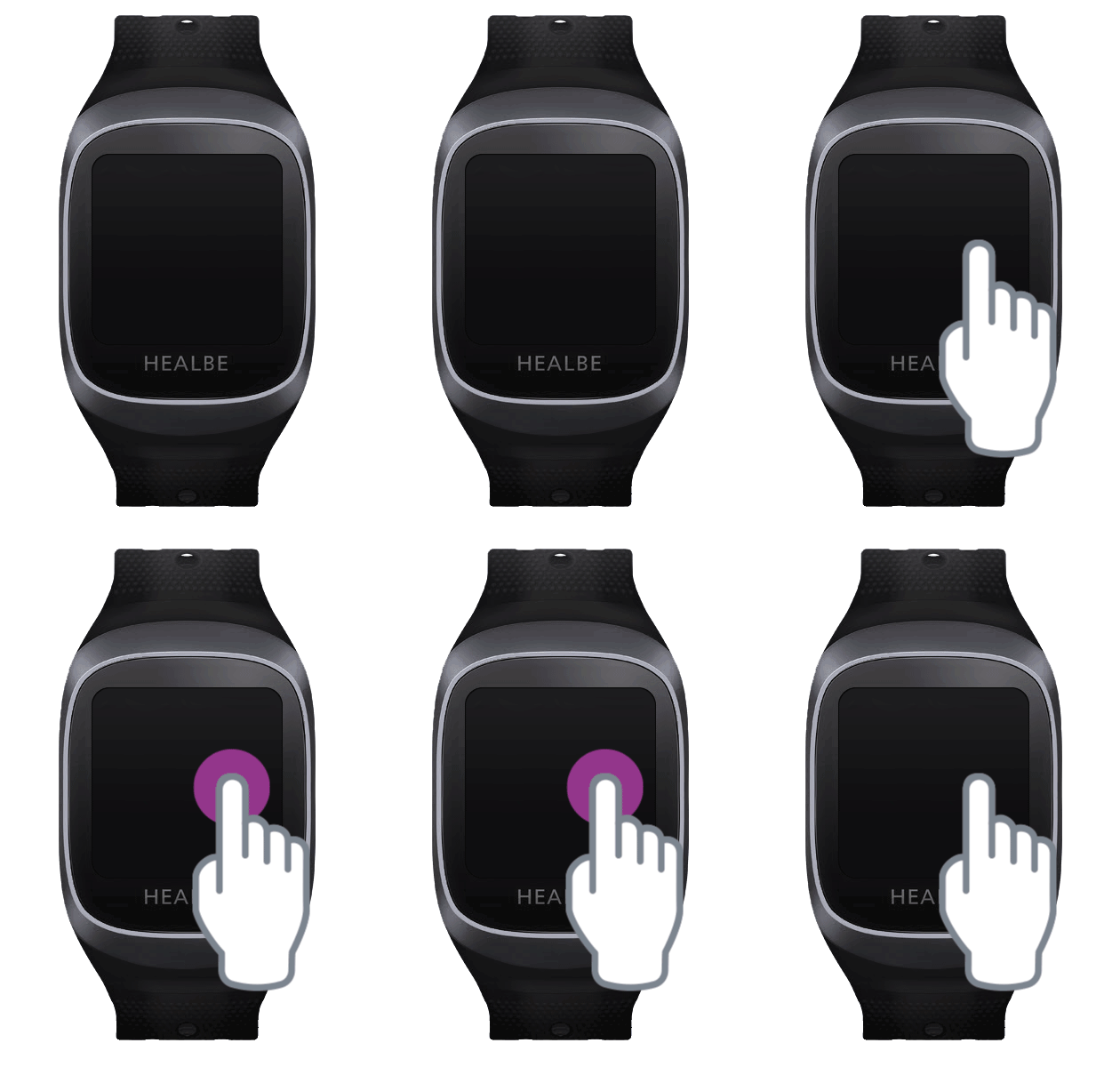
Long tap – tap the screen and hold until the band responds
After 8 seconds of inactivity, the band’s screen locks: the display lights turn off and GoBe3 stops responding to single taps or swipes.
To unlock your GoBe3, tap and hold the screen until the backlight turns on and the band vibrates briefly, then release your finger immediately.
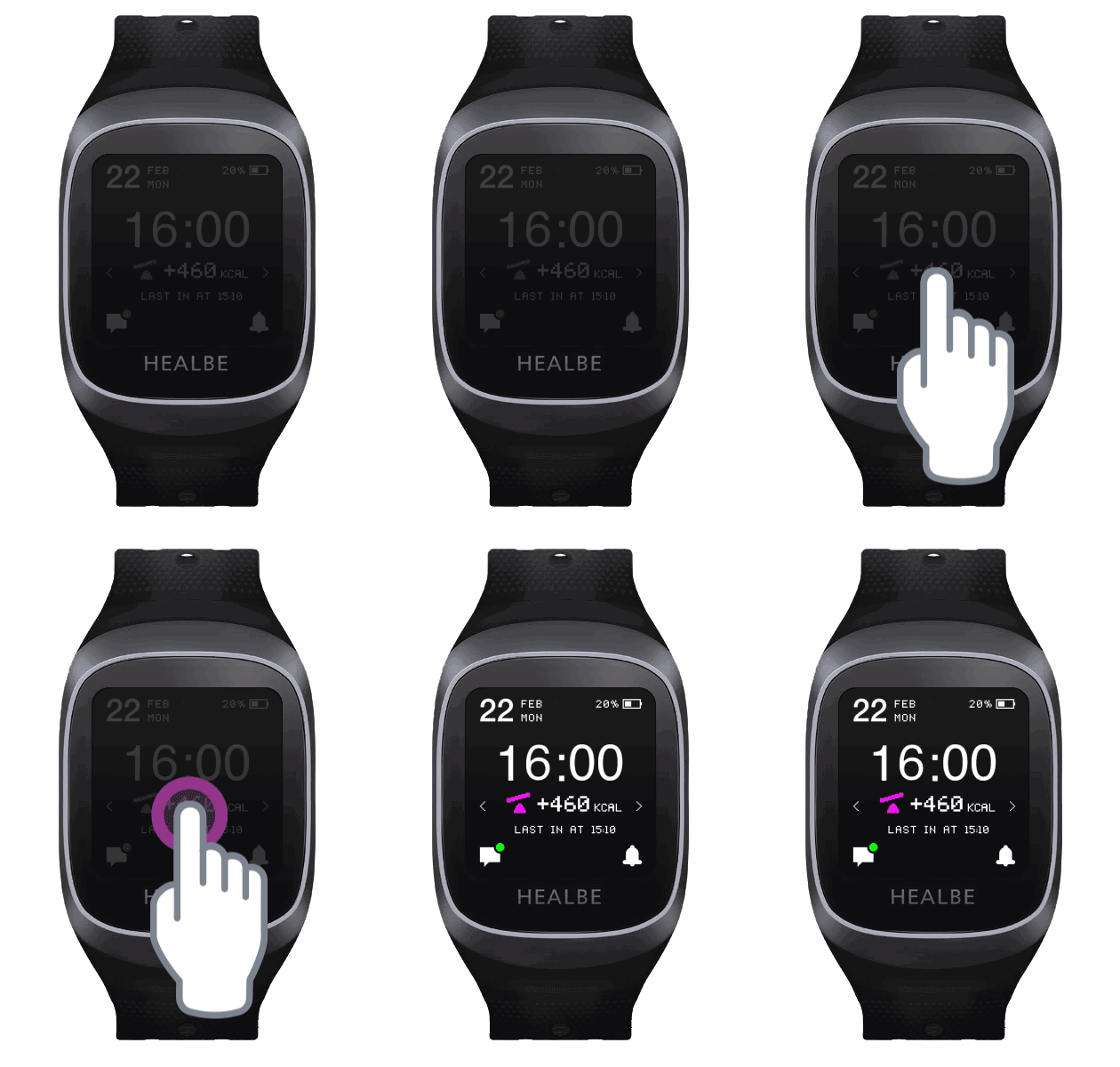
• If unlocked successfully, the GoBe3 will display the Home screen.
• If you hold your finger on the screen for too long, the unlock is canceled. In this case, the band doesn’t vibrate again and the backlight turns off.
The Home screen is the main screen of GoBe3 as it provides access to all of the device’s functions
On the Home screen, you can track all important measurements that your GoBe3 records:
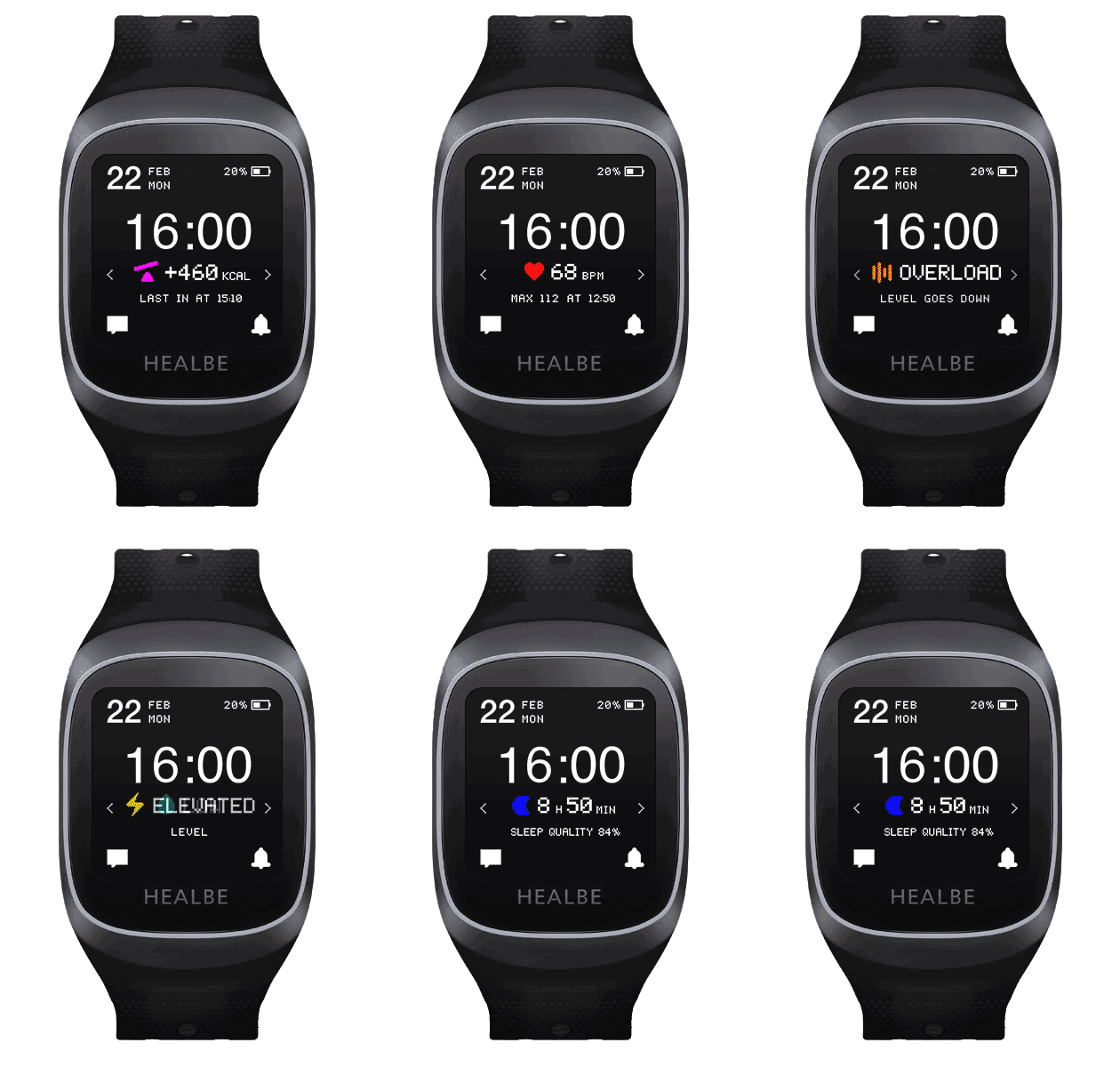
• Energy balance
• Pulse
• Physical Activity
• Stress
• Neuroactivity
• Water balance
• Sleep
To switch between readings, just swipe to the right or left. You can also simply tap the right or left side of the screen.
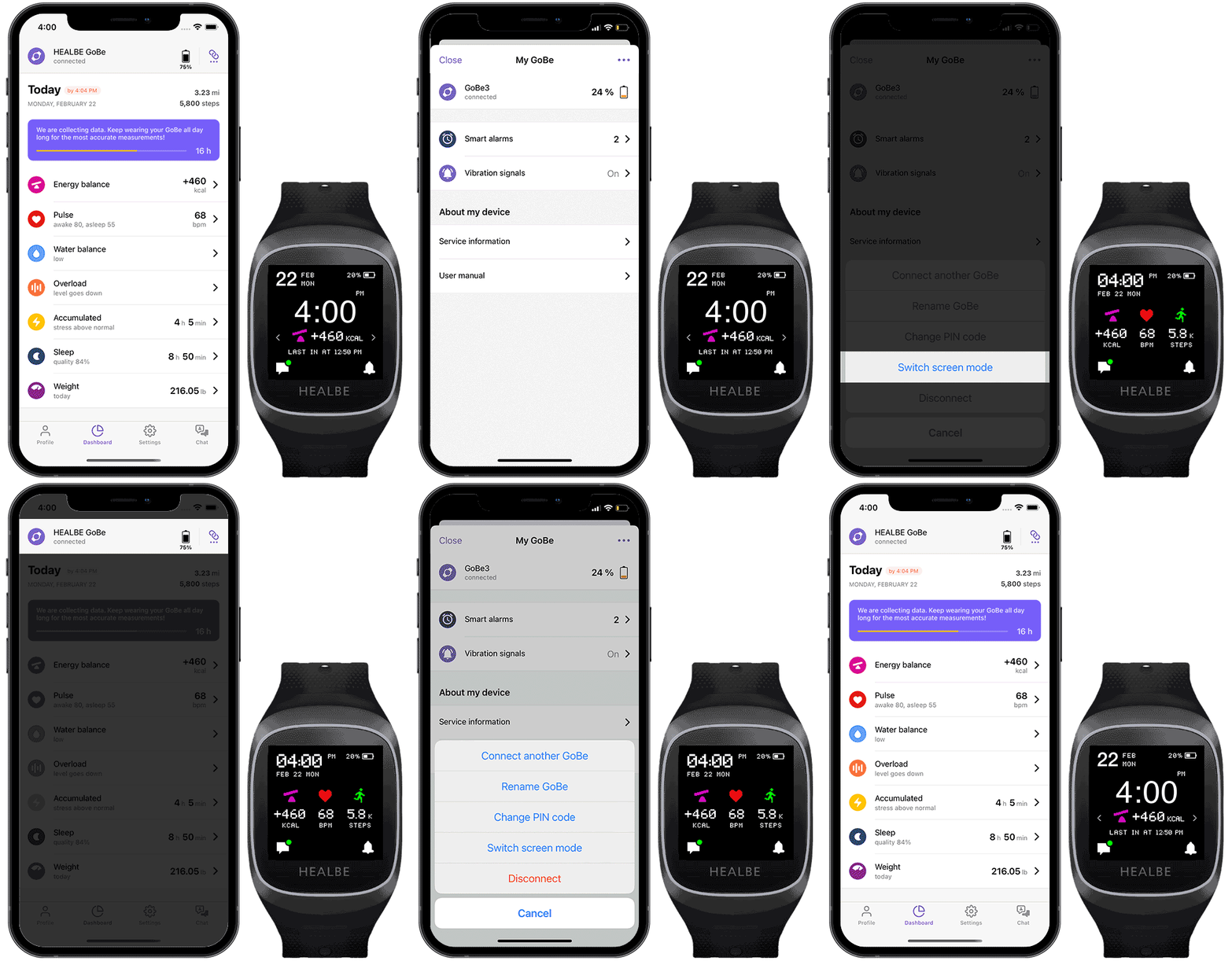
GoBe3 can display information about your body in two different ways. It shows details about a single reading or three readings at once.
To switch GoBe3 Home screen mode, connect it to the app, go to the GoBe menu and look for the “Change screen mode” option.
GoBe3 has a Do Not Disturb mode. When this mode is on, the band doesn’t distract you with notifications
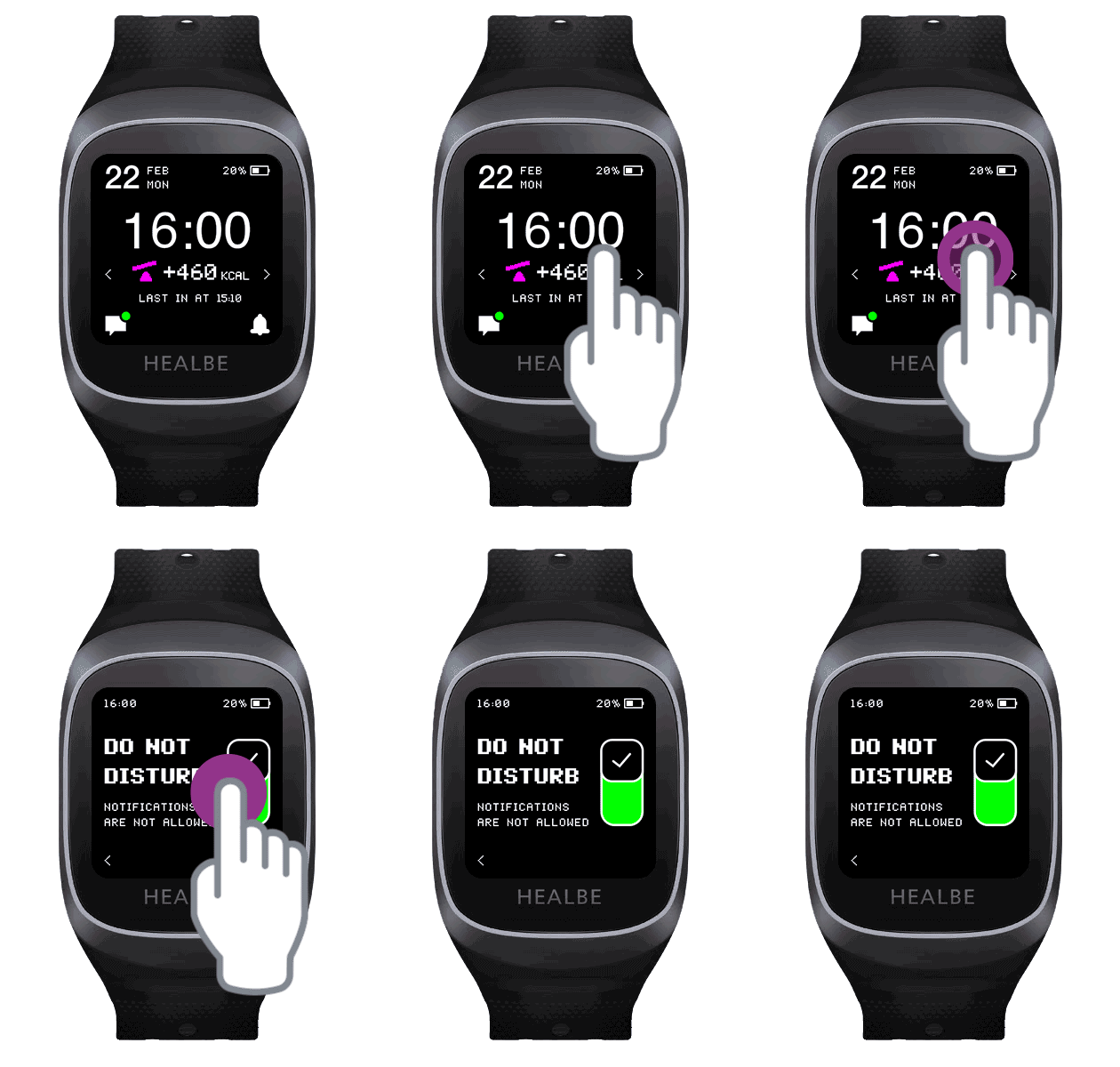
To turn on the Do Not Disturb mode from the GoBe3 Home screen, tap and hold your finger on the right side of the screen. After a couple of seconds, you will see the Do Not Disturb mode screen.
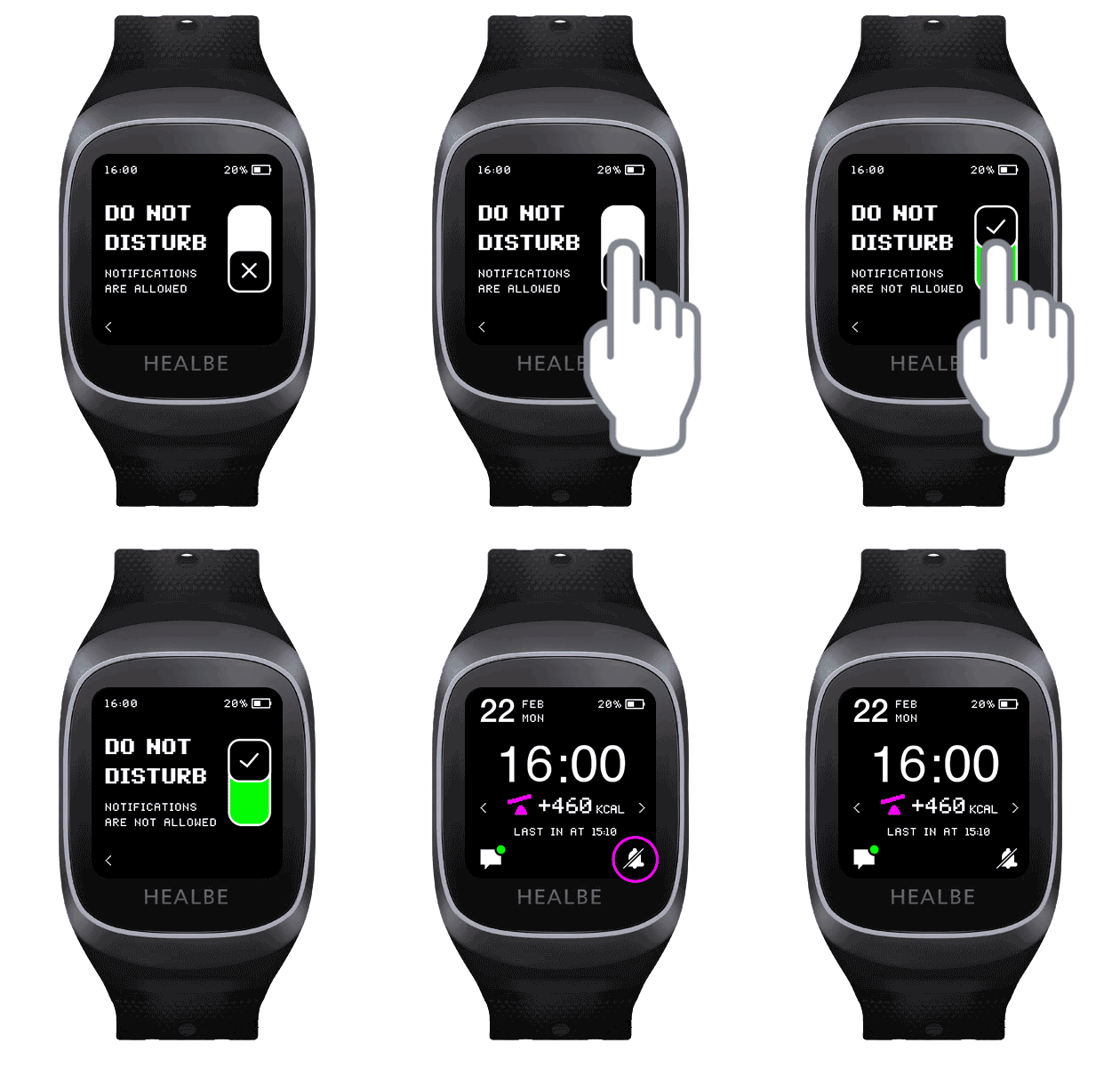
To turn the Do Not Disturb feature on or off, simply tap the right side of the screen. A green slider indicates that GoBe won’t distract you with notifications.
The bell icon in the bottom right corner of the Home screen indicates whether alerts are enabled or not:
When the bell icon is crossed out, the band notifications are turned off.
GoBe3 displays notifications about you and your state on its screen. You can remove them by “swiping” while they are being displayed. Any notifications you don’t remove this way are stored in the Last notifications section.
If Do Not Disturb mode is enabled on the band, GoBe3 doesn’t show notifications on the screen, and they are stored in the Last notifications section.
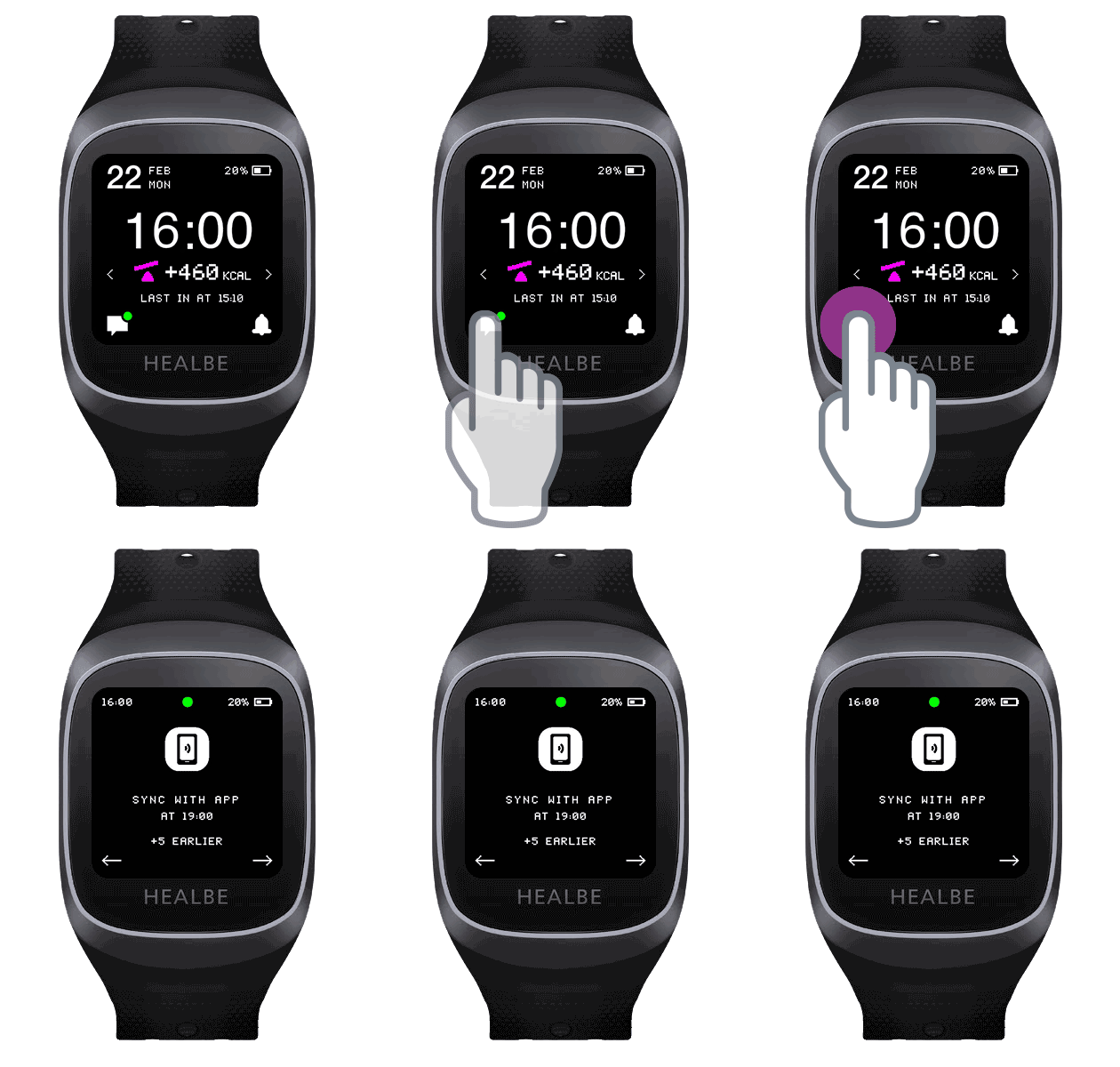
You can access the Last notifications by tapping and holding your finger on the left side of GoBe3 Home screen
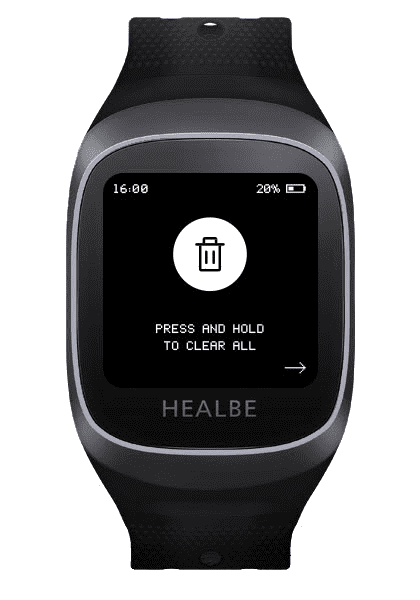
To clear the whole Last notification section, swipe to the leftmost position and hold your finger on the screen with the trash bin icon.
Interested in saving this tutorial for the future? Good news, we have a video tutorial.

Share your experience and find answers anytime using the HEALBE in-app chat.
Please note that HEALBE GoBe is not responsible for any content that purports to give medical advice or advice regarding fitness training, exercise, or diet. Always seek the advice of a physician or other qualified health provider with any questions you may have regarding a medical condition and prior to starting a diet or physical fitness program.